

How to take beautiful code screenshots using codeSnap in Visual Studio Code
codeSnap

Hello there! I am a full-stack software developer with a passion for front-end development. With years of experience under my belt, I bring a unique combination of technical skills and creative vision to every project I work on. I am dedicated to delivering visually appealing and intuitive interfaces that provide an exceptional user experience. Whether it's building responsive web applications or crafting complex full-stack applications, I am committed to delivering high-quality, scalable, and maintainable code. I am always seeking new challenges and opportunities to grow and stay on the cutting edge of the latest industry trends and technologies. I am excited to share my insights and expertise with you on this platform. Let's learn and grow together!
Hi everyone. Have you always wondered how to take beautiful screenshots that captures your audience attention on visual studio code? Worry no more, on this blog I am going to show you step by step how to do it!
Download and install visual studio code
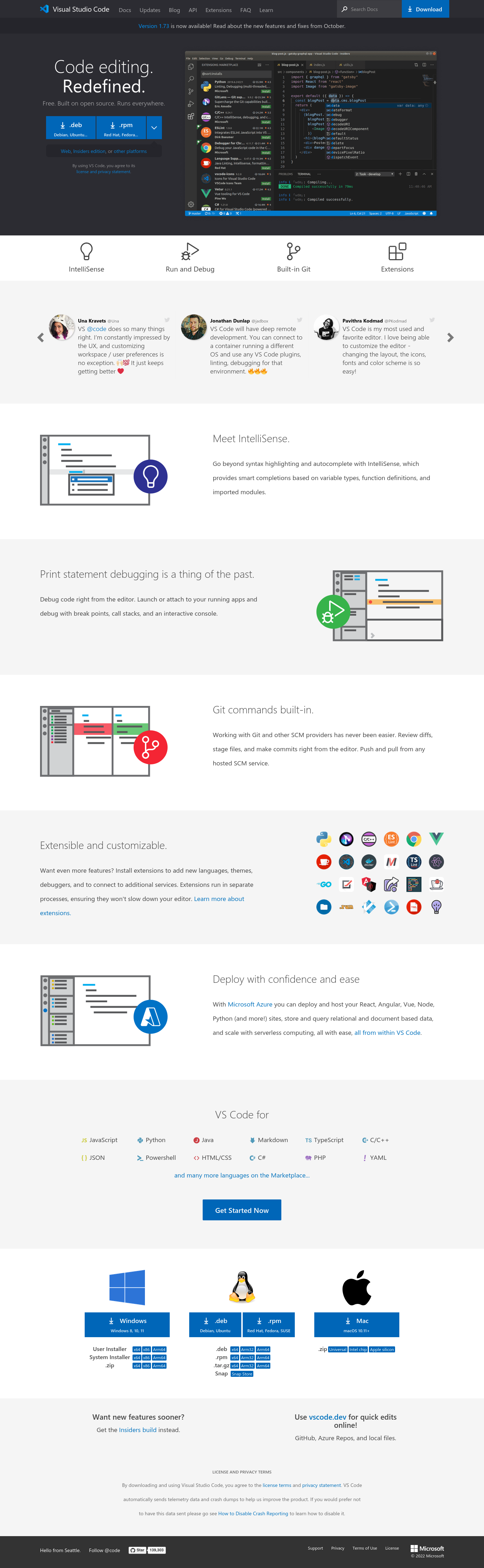
I have used other code editors like sublime text editor, atom and brackets but visual studio code stands out among the best free code editors to have ever used. Visual studio is an editor that can literary do anything with the right configuration. On of the greatest powers of visual studio code is it's extensive rage of extensions that are just available through the click of a button. Long story short click on this link to open the visual studio code home page select the right editor depending on your operating system, for my case I am using ubuntu and thus I will download the debian version.
Install codeSnap
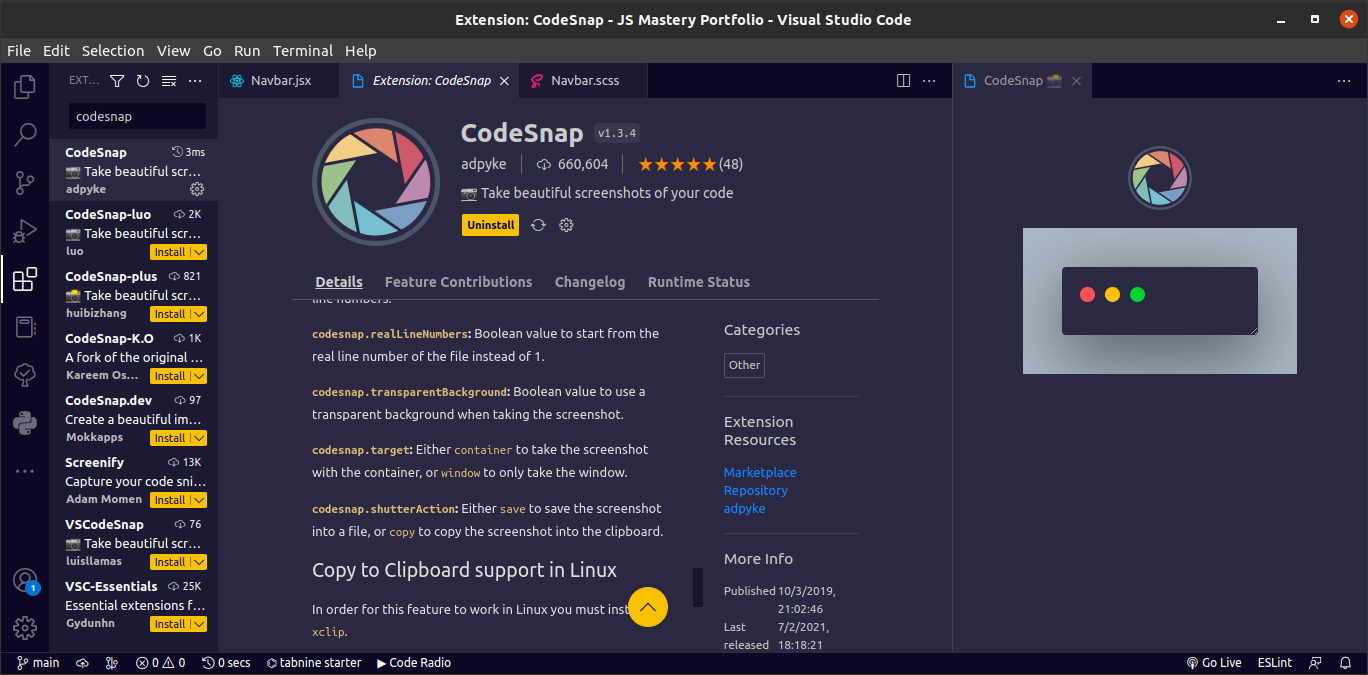
After downloading visual studio code open it and install, after the installation is complete navigate to the left panel and click the extension tab to open a search field where one can search and install a package. In the search field search for codeSnap download and install. You can learn more about codesnap here.
Open any file of code in visual studio and highlight any part of code that you want to screenshoot, for me I want to screenshoot all the code in the file called index.js.
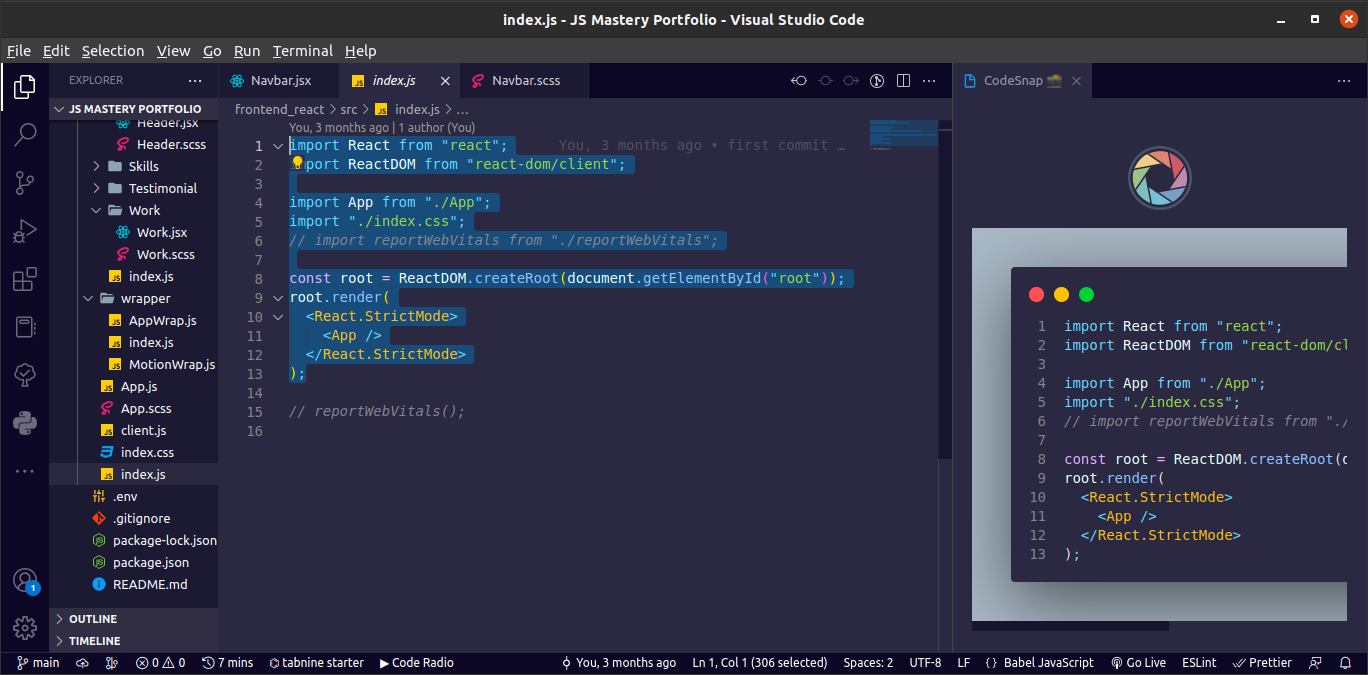
From the above picture I have highlighted my code and now I am ready to take a screenshoot.
Take a screenshoot
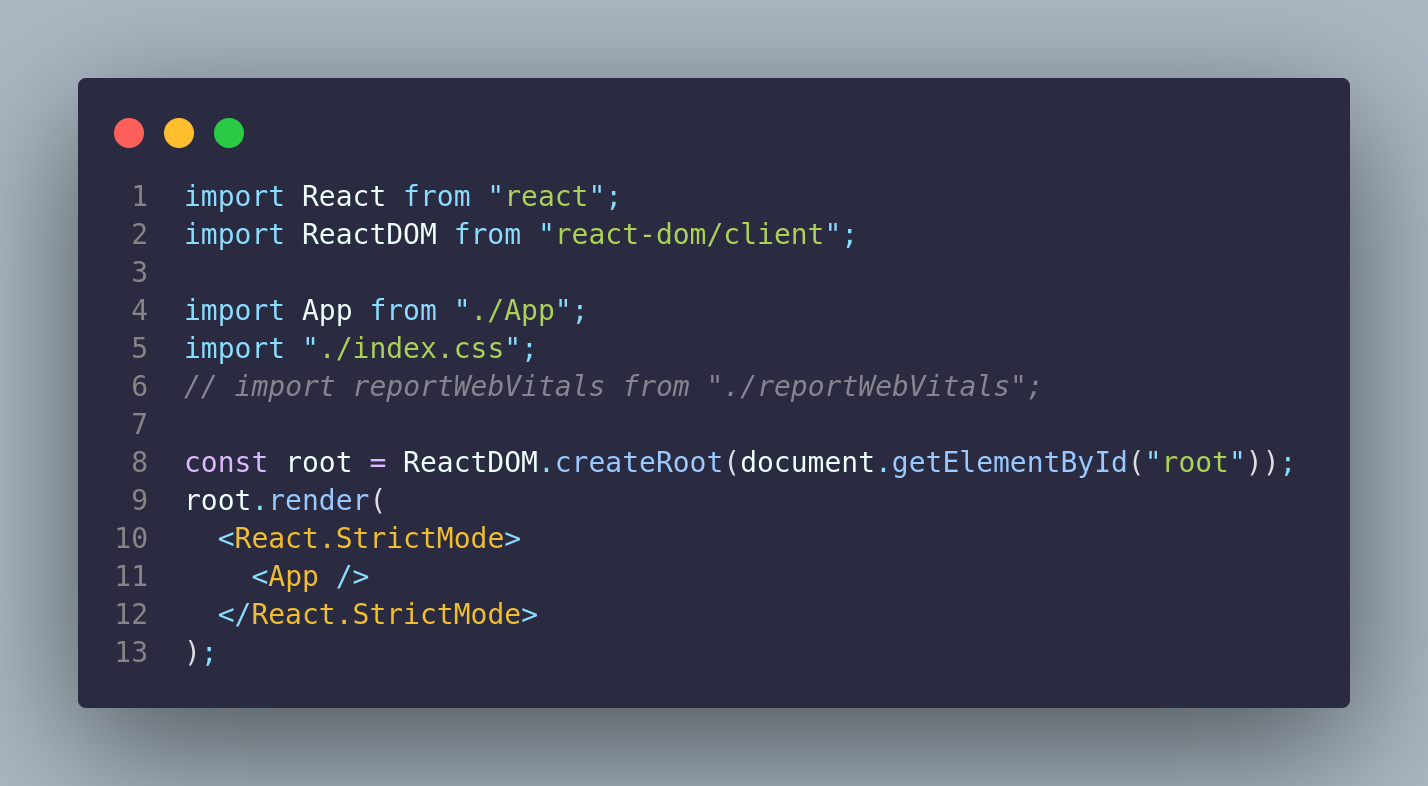
Having highlighted your code it's now time to take a screenshoot. click on the F1 button which opens the command palette and search for codeSnap click the shutter button and you will have you screenshoot ready. You will get a prompt window asking you where you would like to save you screenshoot picture. Here is mine.
Thank you for reading this blog up to the end. I am Peter a software developer. I use this blog to share daily dev hacks and tutorials. Until next time bye.


